



Part 4 — The interfaces
Part 4 — The interfaces
Section titled “Part 4 — The interfaces”13. The project modules
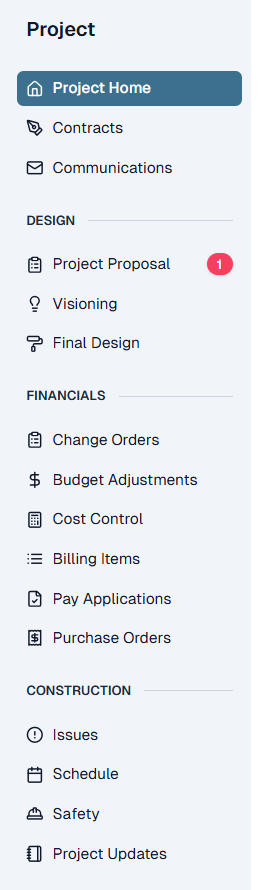
Section titled “13. The project modules”Where most employees work. Project management in the Admin Portal is organised into three sections — Design, Financials, and Construction — beneath the project’s own pages.
| Group | Modules |
|---|---|
| Project | Project Home · Contracts · Communications |
| Design | Project Proposal · Visioning · Final Design |
| Financials | Change Orders · Budget Adjustments · Cost Control · Billing Items · Pay Applications · Purchase Orders |
| Construction | Issues · Schedule · Safety · Project Updates |
13.1 Design
Section titled “13.1 Design”The Design section is used mainly during the design phases. During the Build Phase its main job is to hold new documentation on the Final Design tab.
Keeping the Final Design tab current is critical: the Field App pulls the most current plans from it, so whatever is posted there is what the field builds from. Client visibility is set on each document individually here, so posting a document and sharing it with the client are two separate decisions.
13.2 Financials
Section titled “13.2 Financials”The Financials section manages project financials for both the design and construction contracts. When you open any item in this section, the first thing you do is select which contract you are working in — design or construction. Every module below is contract-scoped.
Change Orders. Add change orders and publish them for signature. This screen also shows a summary of the current contract amount. A change order needs someone to sign it: a client contact must be identified as the change order approver on the project before a change order can be created.
A Change Order is created directly here; there is no Change Estimate step in front of it. A change order carries one status: executed. Approval and execution are the same event under two words, and executed is the term to use — a change order is either not yet executed or executed, and once executed it is in force and billable. The client signs it in the Client Portal, and signing is what executes it.
Budget Adjustments. Adjust the budgets held in each Cost Code. Two types, governed by the rules in section 5.2: internal, which must net to zero once the Fee is included, and change order, which must total the amount of the selected Change Order.
Cost Control. The central hub for project financials, showing budgets, costs, and commitments side by side. This is also where margin analysis is done to project the final cost of the job. That analysis is the Forecast: forecast and margin are the same thing under two names, and it is stored under Cost Control rather than as a separate record elsewhere.
Against every Cost Code a project therefore carries four numbers — the budget it was planned at, the actual invoiced against it so far, what is committed but not yet invoiced, and the forecast it is now expected to finish at. Forecast is a judgment rather than arithmetic, and the gap between it and the budget is where a problem shows up first, usually well before it reaches an invoice.
Commitments are the figure worth understanding. Material ordered but not yet invoiced is spent in every practical sense, and counting it the day the purchase order goes out is what makes a problem visible while there is still time to act on it. Costs shown here are the job costs KI owns, and they are expected to match cost per job in QuickBooks; if a Cost Control figure and the general ledger disagree, treat the number on screen as unproven until the two are reconciled.
Billing Items. Adjust the billing schedule — the contract broken into billable line items, which progress billing is measured against. As with budget adjustments there are two types, governed by section 5.3: internal, where the net change must equal zero, and change order, where the net change must equal the change order amount. Commercial contracting calls the same thing a schedule of values; in KI it is Billing Items.
Pay Applications. Create project invoices on a periodic basis by entering the percent complete on each Billing Item. Because a billing is measured line by line, it can be read against the scope it belongs to. The question a pay application answers is not “what is owed this month” but “which parts of this job progressed, and by how much.” Payments are recorded against the pay application they settle, so each billing carries its own history: what was claimed, what was agreed, what has been received, and what is still outstanding.
The application is sent to the client for approval and payment in the Client Portal. KI can handle retention — a percentage withheld from each billing until the work is accepted — but it is not used in Story’s instance, so billings here are not withheld against retention.
Purchase Orders. Issue and manage purchase orders, which vendors receive in the Vendor Portal and by email. Purchase orders appear as commitments in Cost Control. A purchase order can also be changed after it is issued by writing a change order against it, which the vendor receives and approves in the Vendor Portal. They also track order confirmations and material deliveries, so materials and subcontractors land on site in line with the schedule.
Every line is coded to the project and to a Cost Code, which does two jobs at once: the vendor gets an unambiguous statement of what has been ordered and at what price, and the project gets the commitment on its books the day the order goes out rather than weeks later when an invoice arrives. Both the original purchase order and any change orders written against it show on the commitments tab in Cost Control, so the committed figure is the current obligation to that vendor rather than the amount first ordered.
13.3 Construction
Section titled “13.3 Construction”The Construction section contains Issues, Schedule, Safety, and Project Updates. Issues, Project Updates and safety inspections are all fed from the Field App as well; Schedule is managed here only. Everything in the section can be managed here.
Issues. Any project issue that needs tracking. Internal issues include construction administration questions and quality issues raised by the design or field teams. Client-facing issues and questions are also logged here. Issues are typed by what they concern — design, construction, quality, project controls, or client request — so the log stays readable as it grows and the right person picks up the right question.
Issues are also shown in the Client Portal. Punch-list work is one of these types: closeout defects and unfinished items are logged as quality issues rather than on a separate list.
This is a deliberate widening of an older idea. In commercial general contracting a request for information, or RFI, was a formal question in one direction — from the contractor to the architect or owner. An Issue covers that and also the requests that come the other way, from the client to the team. One channel, both directions, one log. There is no separate RFI module in this instance.
Schedule. The list of project milestones — permit issued, demolition complete, rough-in done, substantial completion. Milestones carry both a target and an actual date, changes are recorded as they happen, and snapshots preserve what the dates looked like at points in time, so “has this date moved, and when” has an answer on the record. Movement in a schedule is normal; movement nobody can trace is the problem.
Milestones are updated in the Admin Portal and viewed by the client in the Client Portal. This instance does not run a CPM (critical path method) schedule or a four-week look-ahead.
Safety. Monthly jobsite safety inspections, run as a checklist. Every item answered unsafe becomes a Safety Concern on completion, and concerns stay outstanding against the project until somebody resolves one with a note and a photo of the correction. These are not the Issues above — they come only from an inspection and are tracked only here. The jobsite safety plan lives in this section as well.
Inspections are recorded and tracked in the Admin Portal and in the Field App on an iPad, against the same record.
Project Updates. Site managers post project updates with photos, mostly from the Field App but also from the Admin Portal. These updates are shown to the client in the Client Portal. An update is the dated record of one day on one project — weather, who was on site, conditions, issues, and quality observations. Legacy KI calls the same module Daily Logs; there is no second record — it is one module under two names.
Logs are kept day by day rather than summarised at the end. That matters when a question surfaces months later: when something was installed, how long a delay actually ran, what the site was like on a particular date. The answer is an entry written that day.
14. Client Portal
Section titled “14. Client Portal”Where clients see their project, review and approve packages, sign contracts, pay invoices, and log issues.
In the Build Phase the Client Portal shifts from moving the client through a process to keeping them informed. Everything in it is populated from the Admin Portal or the Field App — the client’s portal is a window onto the same records the team works in.
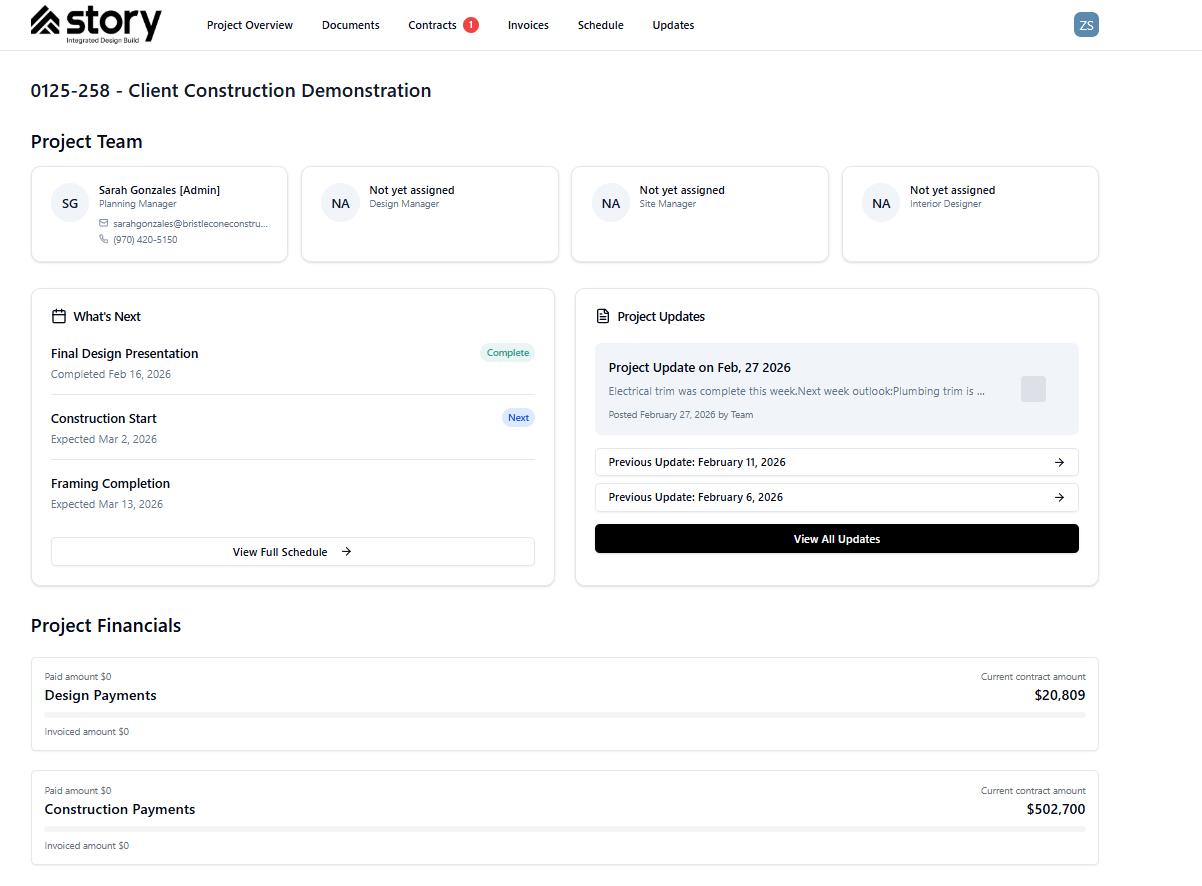
The main sections across the top are Project Overview · Documents · Contracts · Invoices · Schedule · Updates · Issues (hidden — see the note below).
| Section | What the client sees |
|---|---|
| Project Overview | Always the progress tracker. In the Build Phase it shows the project team, a summary of the next milestone, a snapshot of recent project updates, and a financial summary of both contracts including payments made. |
| Documents | The history of every document uploaded to the project, plus any additional reference documents the team adds through the Admin Portal. |
| Contracts | A summary of the contracts and change orders. Clients sign change orders here, which executes them. |
| Invoices | All invoices; the client pays any that are outstanding. |
| Schedule | Project milestones, plus project updates carrying photos and written notes of what happened on a given date. |
| Updates | Project updates as they are posted. |
| Issues (hidden) | A two-way list, hidden from clients until internal testing is complete. Clients log issues they see, whether quality or design, and the team picks them up in the Admin Portal. The team also posts questions here that need clarification or an answer from the client. |
The financial summary presents the two contracts separately — Design Payments and Construction Payments — each showing the current contract amount, the invoiced amount, and the paid amount. Projects are identified by number and name, in the form 0125-258 — Client Construction Demonstration.
Client visibility on documents is not one uniform rule: it varies by document type. In the Final Design section it is set document by document, so the client sees a chosen set rather than everything the team has accumulated.
Access is by invitation. A client is a contact on the project before they are a login: the contact record is sent an invitation, and accepting it turns them into someone who can sign in.
Note. The Issues tab is intentionally hidden in the Client Portal at present. Issues is a documented main section and the client’s route for logging problems, but the tab is held back until it has been tested internally, which is why the navigation currently shows six tabs. It will be exposed to clients once testing is complete.
15. Vendor Portal
Section titled “15. Vendor Portal”Where vendors and subcontractors receive purchase orders and interact with us. Purchase orders are issued from the Admin Portal (section 13.2) and reach the vendor both in the portal and by email. The portal also carries order confirmations and material deliveries back.
A vendor sees their own document: the lines addressed to them, the quantities and prices agreed, and the attachments that go with it. It is scoped to exactly that — not the project budget, not the client’s contract, and not another vendor’s pricing. Most counterparties on a renovation need one document and none of the rest.
What a vendor can do today is narrow: receive and approve a purchase order, and receive and approve changes to that purchase order. Nothing else in the portal is live. We intend to widen it, but until then treat anything beyond purchase orders and their changes as not built. How a vendor is granted access is not documented anywhere; ask before you promise a vendor a login.
16. Field App
Section titled “16. Field App”Where field teams work on site, on an iPad. Post a project update with photos, raise an issue, start a change order, and read the current plan set — plus read-only views of Cost Control, Purchase Orders, Pay Applications and Contracts. Time is entered here too.
The Field App carries a Safety section: run a monthly inspection on the iPad, resolve outstanding Safety Concerns with a photo, and export or report across past inspections. It is the same record the Admin Portal shows (section 13.3).
Two dependencies matter:
- The Field App pulls the most current plans from the Final Design tab (section 13.1). Whatever is posted there is what the field builds from.
- Project updates and issues raised here appear in the Admin Portal’s Construction section (section 13.3); project updates flow on to the Client Portal.
The point of the app is that the record is made in the field on the day, rather than reconstructed at a desk at the end of the week.
17. Company-wide tools
Section titled “17. Company-wide tools”Outside of any single project, KI gives every employee a set of company-wide modules. These are the screens you will use daily regardless of which projects you are on.
| Module | What it is |
|---|---|
| Dashboard | Covers the projects you are on or following: a snapshot of each project’s next milestone with links, an activity board of what is happening, any issues you have been tagged in, and your time card entry. |
| Time Entry | Where employees enter their time and assign it to the correct codes and classifications, including hourly billings. |
| Forms | Where company forms are built and managed. |
| Reports | Company-level reporting. |
| Settings | Your personal KI settings. |
| Contacts | Individual people we work with. Recording a person once means an updated phone number or address updates everywhere it appears. |
| Companies | The companies we work with, along with their compliance tracking — insurance certificates, W-9s, signed Master Agreements, and similar items. This is where subcontractor compliance is held, at company level rather than per project. |
The Forms module holds the visioning questionnaires used in Phase 2. These modules are in the Admin Portal.
Hours are recorded against a project and a Cost Code, which is the part that does the work: it is the same classification the Estimate and the budget use, so labour lands in the category the work was priced under. Hours recorded without it would tell you what a job cost in total but not where it went.
18. Legacy KI
Section titled “18. Legacy KI”Legacy KI points at the same database as the rest of this instance, so work done in these modules is live data, not a separate copy and not an archive.
We are migrating off Legacy KI, but several modules still run there:
- Construction pricing proposals — the Cost Code estimates and markups behind every project proposal (section 9)
- Admin Setup — system configuration such as Standard Codes, the Cost Code library, and the company and Division setup that drives the QuickBooks Class mapping
- Accounting — the largest of the remaining Legacy modules, covered next
- Sales triage — the pipeline board and the lead attributes that have no Admin Portal equivalent (section 6.1)
- Material catalog — present but unused; it would need rebuilding before it could serve the current workflow
19. Accounting
Section titled “19. Accounting”Accounting runs in Legacy KI and integrates with QuickBooks, which is our general ledger. Each entity has its own QuickBooks company.
The division of responsibility is exact: KI owns job costs and project billing; QuickBooks owns the books; the integration keeps the two tied together. That tie has a hard requirement behind it: cost per job in KI must equal cost per job in QuickBooks, and revenue per job in KI must equal revenue per job in QuickBooks. Where the two disagree, one of them is wrong and neither can be trusted until the difference is explained. There is no automated reconciliation in the system today, so the comparison is done by hand — this is the single biggest pain point in Accounting and the reconciliation the system needs to close.
Accounting has seven sections, all documented here.
19.1 Accounts Payable
Section titled “19.1 Accounts Payable”- AP invoices are uploaded here and the invoice information is keyed in manually by accounting, then assigned to a project or routed to an approver.
- The approver codes and approves the invoice. KI runs three checks at this point: that the cost does not exceed the commitment, that it does not exceed the budget, and that the amount entered by the approver ties to the amount accounting entered.
- Approved invoices go back to accounting for a final approval and double-check.
- They are then pushed to QuickBooks through our QuickBooks integration.
Subcontractor compliance sits alongside these checks as a business rule: a subcontractor providing labour must have a signed Master Agreement and current insurance on file in the Companies module before its invoice is paid.
That coding is what makes the cost side real. The actual-cost figures in Cost Control are built from coded invoices — documents someone actually received — rather than from an estimate of what has probably been spent by now. It is also what lets a single line on a cost summary be opened up into the specific invoices behind it.
19.2 Accounts Receivable
Section titled “19.2 Accounts Receivable”Project invoices created in KI flow to QuickBooks automatically. This section is where you search and review them. Because billing is the revenue side of the same tie, revenue per job in KI must equal revenue per job in QuickBooks; an invoice that exists in one and not the other, or at a different amount, is the first thing to look for when the two disagree.
19.3 Create Journal Entry
Section titled “19.3 Create Journal Entry”Journal entries are posted here against Job Costs and GL (general ledger) Codes to keep QuickBooks and job costs in balance. Entries post to QuickBooks automatically.
19.4 Job Accounting / Costing
Section titled “19.4 Job Accounting / Costing”This is our WIP — work in progress — reporting. WIPs are run by Division and by grouping of contracts, because that is how they tie to our P&L.
So the WIPs that actually get run are Denver Design, Denver Construction, Dallas Design, Dallas Construction, and so on for each Division. The two halves of that name do two different jobs. The Division half is the QuickBooks Class. The Design-or-Construction half picks the GL accounts: revenue and cost of goods sold are held in separate Design and Construction accounts in QuickBooks, so running the WIP at Division × contract grouping is what lets a posting carry both the right Class and the right revenue and COGS accounts.
Within a WIP you select a time period, review the jobs in progress, and perform the standard WIP over/under-billing accrual and report. Each Division-and-contract-grouping WIP posts to QuickBooks as the over/under-billing for that grouping, together with a reversing entry dated the first day of the following month. A WIP is only as good as the agreement underneath it: before running one, check that cost per job and revenue per job in KI tie to the same figures in QuickBooks. Any variance has to be found and explained first, because a WIP built on job costs or billings that disagree with the general ledger will accrue the wrong over/under-billing.
19.5 Journal Entries
Section titled “19.5 Journal Entries”A read-only history of past journal entries.
19.6 Payroll
Section titled “19.6 Payroll”- An employee subtab holds employee information, wage cost, and the rates at which they hit jobs. Overhead employees who are not charged to jobs get a GL Code here instead.
- The payroll process pulls everyone’s time, is run by our payroll administrator, and ultimately produces everyone’s time cards.
- When payroll is complete a report is generated for upload to ADP, and it establishes actual cost by job and Cost Code.
- KI consumes that report and creates a journal entry to QuickBooks that charges jobs at billable rates, records actuals, and accrues the difference to a labor reconciliation GL Code.
- Payroll then pushes to the job costs you see in Cost Control, calculated as hours × the employee’s billable rate, so QuickBooks and our job costs agree.
- History can be searched by project, Cost Code, or time period.
19.7 Accounting Admin
Section titled “19.7 Accounting Admin”The configuration section for Accounting. It holds the payroll import setup and the check setup. Neither is in use today: payroll comes in through the report generated for ADP and journalised from there, and checks are not written out of KI.